 Dashboard and kiosk
Arrange Home around the information you use most: playback, recent media, requests, downloads, and operational alerts.
Find your way around
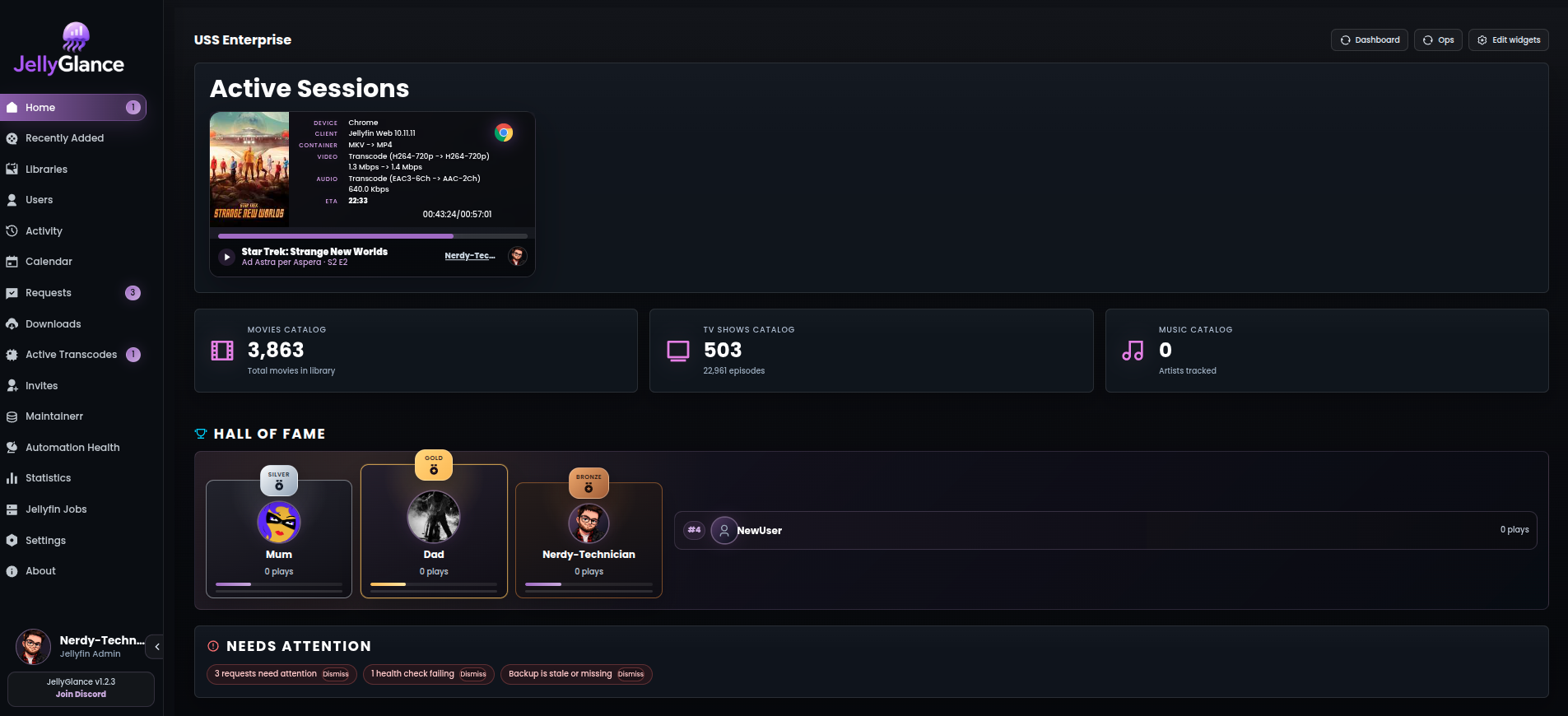
The numbered markers link to the explanations below. Screenshots show an example installation; counts, widgets, and available pages depend on your configuration.
1. Sidebar navigation
The sidebar opens library, activity, user, and operational pages. Integration-specific pages appear when configured, and role permissions affect what each user can access. Household users use My Glance rather than admin Home.
2. Edit widgets
Select Edit widgets at the top right of Home.
- Choose a Preset as a starting point.
- Reorder sections with the drag controls and hide sections you do not need.
- Use Pin top to keep one section near the top.
- Adjust widget sizes and choose Comfortable or Compact density.
- Select a theme: Default, Darker, Neon, High contrast, or Wall display.
- Use Export to save a copy of your layout before making substantial changes.
Edits set the preset to Custom and are saved to browser local storage. Do not assume layouts automatically follow you to another browser or survive clearing site data. User and kiosk layouts use separate storage contexts.
3. Active playback
The sessions area shows what Jellyfin reports as currently playing, including client, device, delivery method, progress, and transcode information. Use it to inspect a live stream; use Activity for past playback.
Session wall
Active Sessions has two layouts. Use the toggle beside the heading to switch between Cards and Wall. Wall shows a compact tile per stream with who is watching, the poster, progress, device, and whether it is direct playing or transcoding. The choice is remembered in this browser. When nobody is playing, the section is hidden and reappears as soon as playback starts.
Why is this transcoding?
Admins see a chip on each transcoding stream, such as Transcode: Subtitle burn-in or Remux: Container. Tap it for a plain-English reason (HEVC to H.264, audio codec, bitrate over the limit, HDR tone-mapping, image subtitles being burned in, resolution caps or direct play turned off) and a fix hint for that device, for example enabling HEVC in Infuse or Android TV, raising the max streaming bitrate, or switching to SRT subtitles. Remuxes and audio-only transcodes are labelled separately from full video transcodes.
Heads-up before removing something being watched
Removing a download, re-grabbing a new copy or purging an item checks Active Sessions first. If someone is playing that title, JellyGlance shows who and on which device, and you can cancel or carry on anyway. This is a soft lock: it warns, it does not block.
Beta feature
Session wall, the transcode explainer and the watching heads-up ship on the 1.4.2-beta line.
4. Operational alerts
The operations area brings attention to pending requests, health checks, and backup age. The editor exposes alert thresholds such as backup days, pending requests, missing posters, stream cap, and transcode cap. Restore alerts clears dismissed-alert preferences.
Kiosk display
Use /home/kiosk on your JellyGlance application hostname, for example:
- Sign in on the display device with an account allowed to access the intended dashboard.
- Configure kiosk options under Settings → Kiosk, then open the kiosk route.
- Check the layout at the screen's actual resolution and browser zoom.
- Show only the widgets and playback details appropriate for people who can see the display.
- Leave a live session running briefly to confirm the display continues to update.
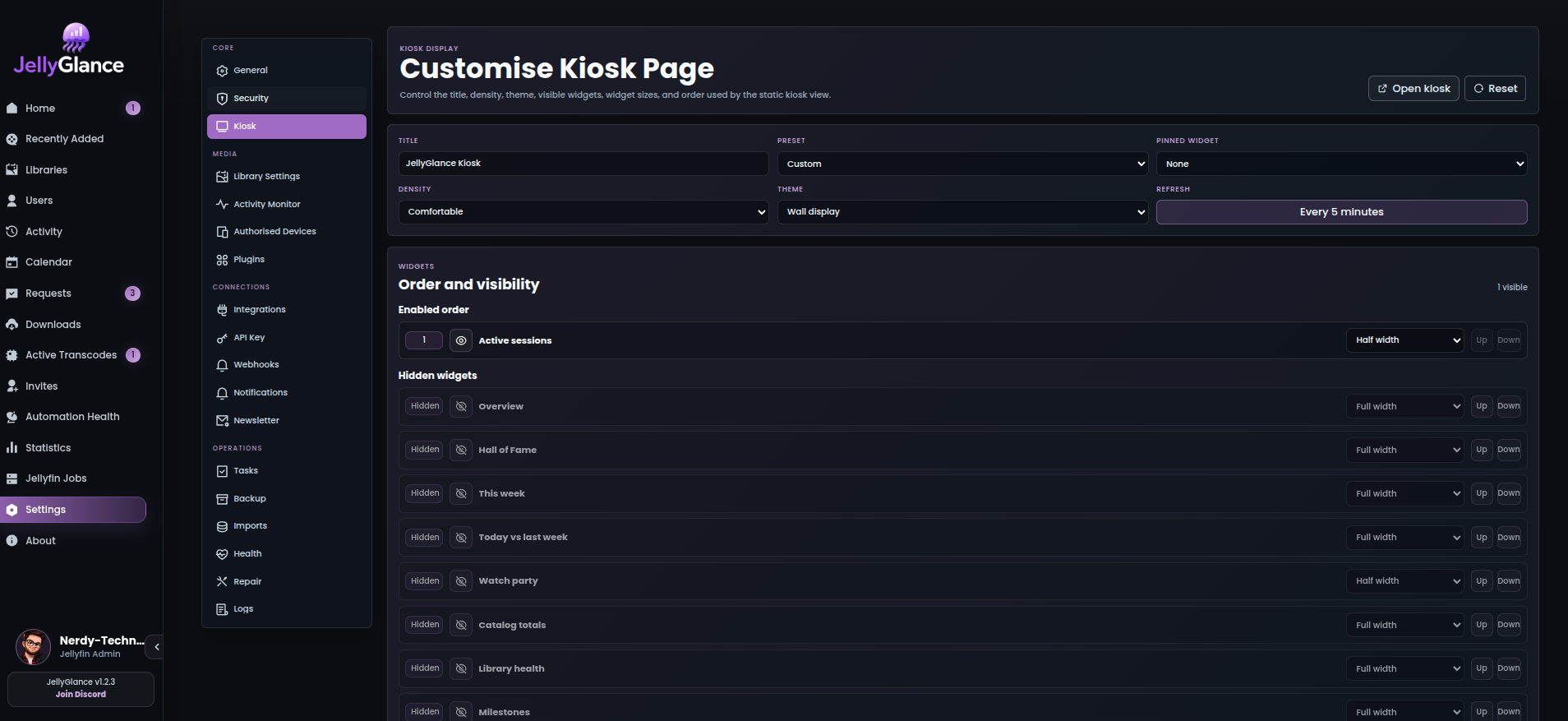
Kiosk settings control the display experience. Kiosk mode is not a public authentication bypass.
The Home implementation uses longer refresh intervals in kiosk mode, so some operational data updates less frequently than on normal Home. Browser sleeping, display power saving, and disconnected WebSockets can also delay updates.
Common adjustments
| Goal | Adjustment |
|---|---|
| Less scrolling on a desktop | Compact density, hide unused sections, and pin the most useful section |
| A readable wall display | Wall display or High contrast theme, fewer widgets, and readable browser zoom |
| Keep personal activity private | Review Active Sessions privacy and user visibility options in Settings |
| Recover a changed layout | Reapply a preset; keep an exported copy before experimenting |
| Missing integration widget | Configure the service, check permissions, then review visibility in the editor |
See screenshots for other pages and troubleshooting for stale or missing data.