 Notifications and webhooks
Send JellyGlance events to Discord, Gotify, ntfy, Telegram, or another supported destination. Configure these under Settings → Webhooks.
Create a destination
- Add a webhook and give it a descriptive name, such as
Discord — server health. - Select the destination type and enter its URL.
- Enable the events you need. Start with a small selection so important alerts are easy to notice.
- Add required headers, save, and use the webhook's Test action.
- Confirm delivery in both JellyGlance's delivery history and the destination app.
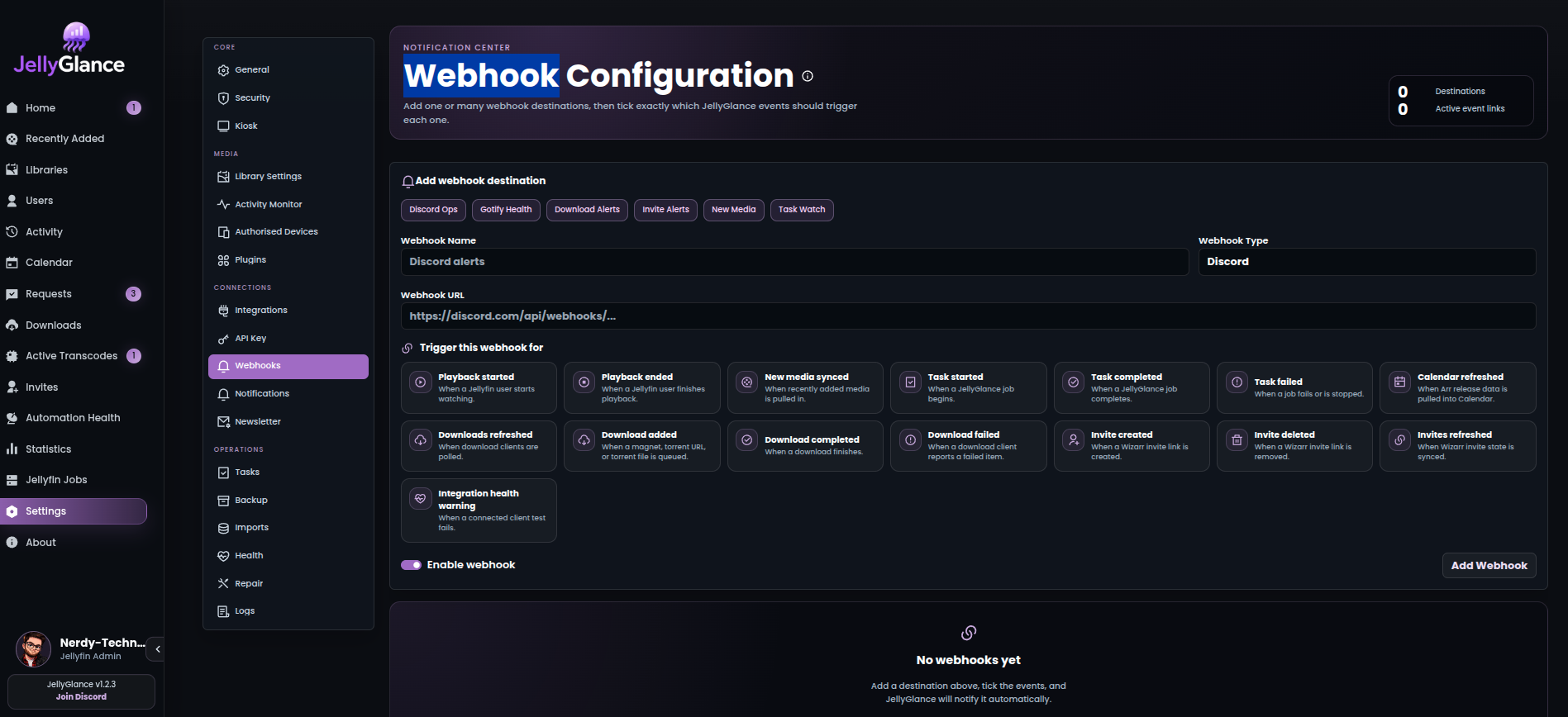
Select a destination, configure its URL, and choose the events it should receive. Names and example values vary by installation.
Destination setup
Create or obtain a Discord incoming webhook for the intended channel. Select Discord in JellyGlance and paste its complete URL:
The URL itself grants permission to post. Do not paste it into public logs or issues. Send a test and confirm it reaches the correct channel.
Create an application in Gotify and copy its application token. Select Gotify and use the message endpoint:
Use an application token, not a client token. If using public image cards, the destination must be able to reach the configured JS_PUBLIC_URL; see configuration.
Select ntfy and enter the topic URL you subscribe to:
For a protected server/topic, add an Authorization header with value Bearer YOUR_ACCESS_TOKEN using the webhook's Headers setting. Confirm the token can publish to that topic. Subscribe in ntfy before testing. See the upstream publishing documentation for topic authentication.
Obtain a bot token and the destination chat ID. Make sure the bot can message that chat. Select Telegram and use:
Replace both placeholders. For a group, verify the bot belongs to the intended group and has permission to send messages. The bot token is secret even though it appears in the URL.
Choose useful events
| Need | Events to consider |
|---|---|
| Know when something fails | Health and task failure events |
| Track new media | Media-added and import events |
| Follow requests/downloads | Request changes, download completion, and download failures |
| Confirm maintenance | Backup and task completion events |
| Monitor access invitations | Invite-related events when Wizarr is configured |
Available event choices come from the application's event picker. Review quiet hours and card appearance settings as well. Keep separate destinations if operational alerts and new-media notices belong in different channels.
Outbound webhook rules
Beta feature
Available on the 1.4.2-beta line.
Open: Settings → Notifications → outbound webhook rules
Rules send a JSON POST to Home Assistant, ntfy, Discord or any URL when a trigger fires.
- Pick a trigger, for example a stuck or failed download, Cleanuparr needing attention, low disk space, or playback starting.
- Optionally filter on any field of the event.
- Add headers if the receiver needs them.
- Use the default body or write your own JSON with placeholders. Preview shows the payload.
- Send a test, then save.
Recent deliveries show the status code or error. Saved URLs and header values are encrypted and hidden after saving.
Diagnose delivery failures
- Test fails immediately: verify URL, credentials, destination type, and network access from the app container.
- Test succeeds but an event does not arrive: confirm that event is enabled, the webhook is enabled, and quiet hours do not explain the result.
- Provider returns
401/403: check token type, permissions, and revocation. - Provider returns
429: reduce event volume and inspect provider rate-limit guidance. - Image missing but text arrives: inspect the image URL and whether the receiving service can fetch it.
The Webhook Health Check task sends a test task-completed event through enabled task webhooks; it is not a universal test of every event selection. See task reference.